Quest Data Modeler lets you connect to Google BigQuery by using OAuth 2.0 authentication. When you use OAuth, you sign in through a Google window instead of managing a service account key file.
To set up OAuth authentication, complete these two stages:
-
Stage 1: Create the OAuth client in the Google Cloud console and download the client JSON file. The file contains the client ID, client secret, authorize URL, and token URL.
-
Stage 2: Configure BigQuery OAuth in QDM by importing the JSON file so that QDM fills in the connection details automatically.
Complete both stages to connect to Google BigQuery by using OAuth.
Prerequisites
Before you begin, make sure that you have:
-
Access to the Google Cloud console for your project, with the Editor role or a custom role that includes permission to create OAuth client credentials.
-
The Gateway URL and the fixed OAuth Callback URL for your environment. Both values appear on the BigQuery OAuth page:
-
Gateway URL: https://<application-domain>
-
OAuth Callback URL: https://<tenant-id>.myerwin.com/gateway/api/v1/redb/googlebigquery/oauth/callback
Note: If you can't find these URLs, contact your administrator.
-
Stage 1: Get the OAuth client JSON file from the Google Cloud console
-
Sign in to the Google Cloud console, and then select your project (for example, erwin DM).
-
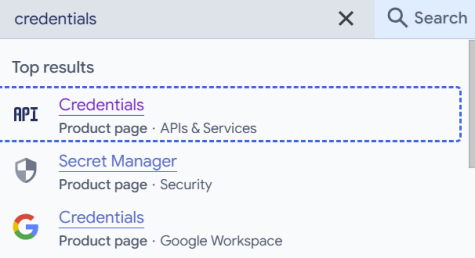
In the search bar, enter credentials, and then select Credentials from the results.
-
Select Create credentials > OAuth client ID.
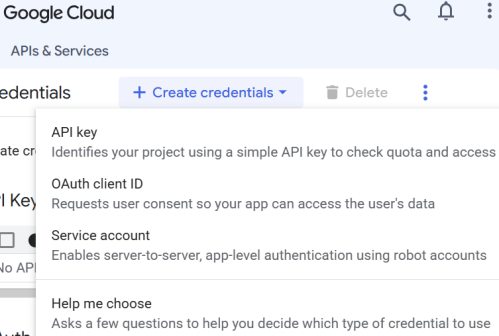
The Create OAuth client ID page opens.

-
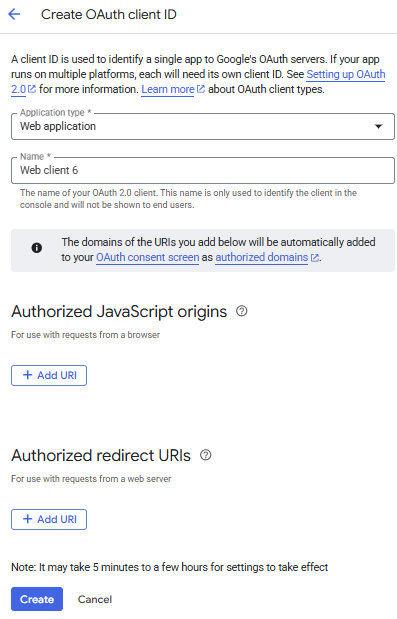
In the Application type list, select Web application.
The page displays additional fields, including Name, Authorized JavaScript origins, and Authorized redirect URIs.
-
In the Name box, enter a name that identifies the client (for example, Web client 1). This name appears only in the console.
-
Under Authorized JavaScript origins, select Add URI, and then enter the Gateway URL (for example, https://<application-domain>). The URL must begin with http or https.
-
Under Authorized redirect URIs, select Add URI, and then enter the OAuth Callback URL from the QDM BigQuery OAuth page. For example, https://<tenant-id>.myerwin.com/gateway/api/v1/redb/googlebigquery/oauth/callback.
-
Select Create.
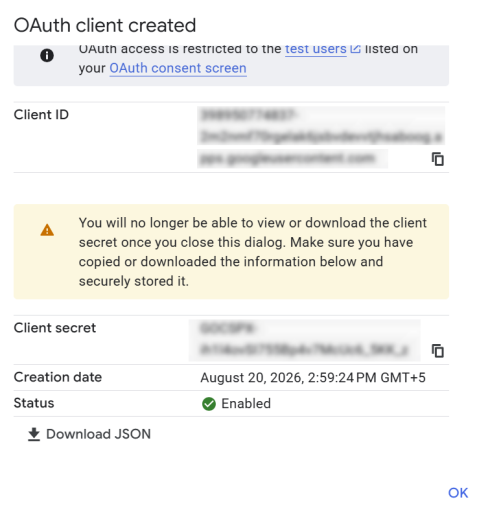
The OAuth client created dialog box appears.
-
Select Download JSON, and then save the downloaded client secret JSON file (client_secret_.json) to a secure location.
Note: After you close the dialog box, you can't view or download the client secret again.
Stage 2: Configure Google BigQuery OAuth in QDM
-
Go to
 .
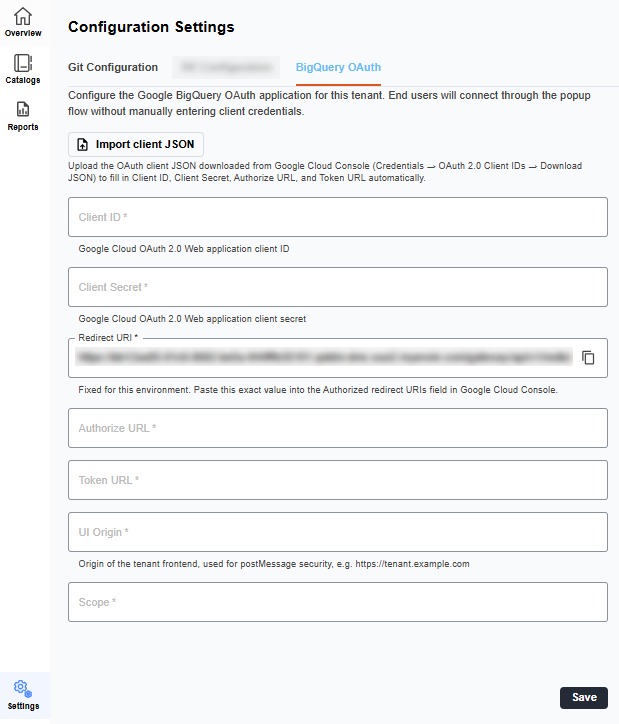
.The Configuration Settings page appears.
-
Select the BigQuery OAuth tab.
-
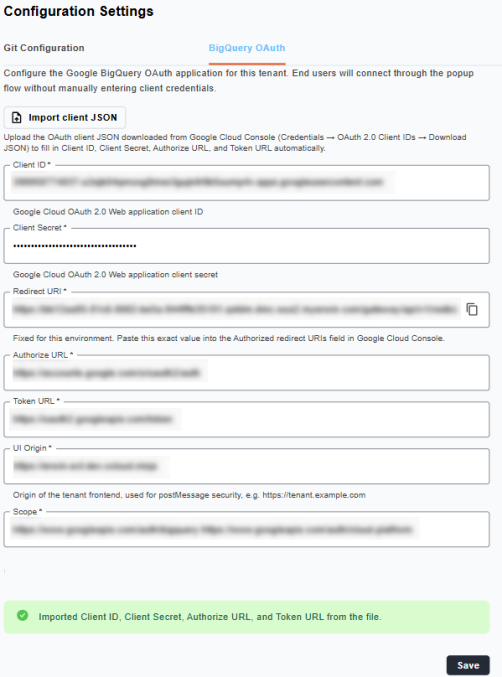
Select Import client JSON, and then select the client_secret_.json file that you downloaded in Stage 1.
QDM fills in the Client ID, Client Secret, Authorize URL, and Token URL boxes and displays the message Imported Client ID, Client Secret, Authorize URL, and Token URL from the file.
-
Verify that the OAuth Callback URL matches the authorized redirect URI that you added in Stage 1, step 7. This value is fixed for the environment.
-
In the Gateway URL box, enter the origin of the tenant front end (for example, https://<application-domain>). QDM uses this value for postMessage security.
-
Select Save.
QDM displays the message Configuration saved successfully.